

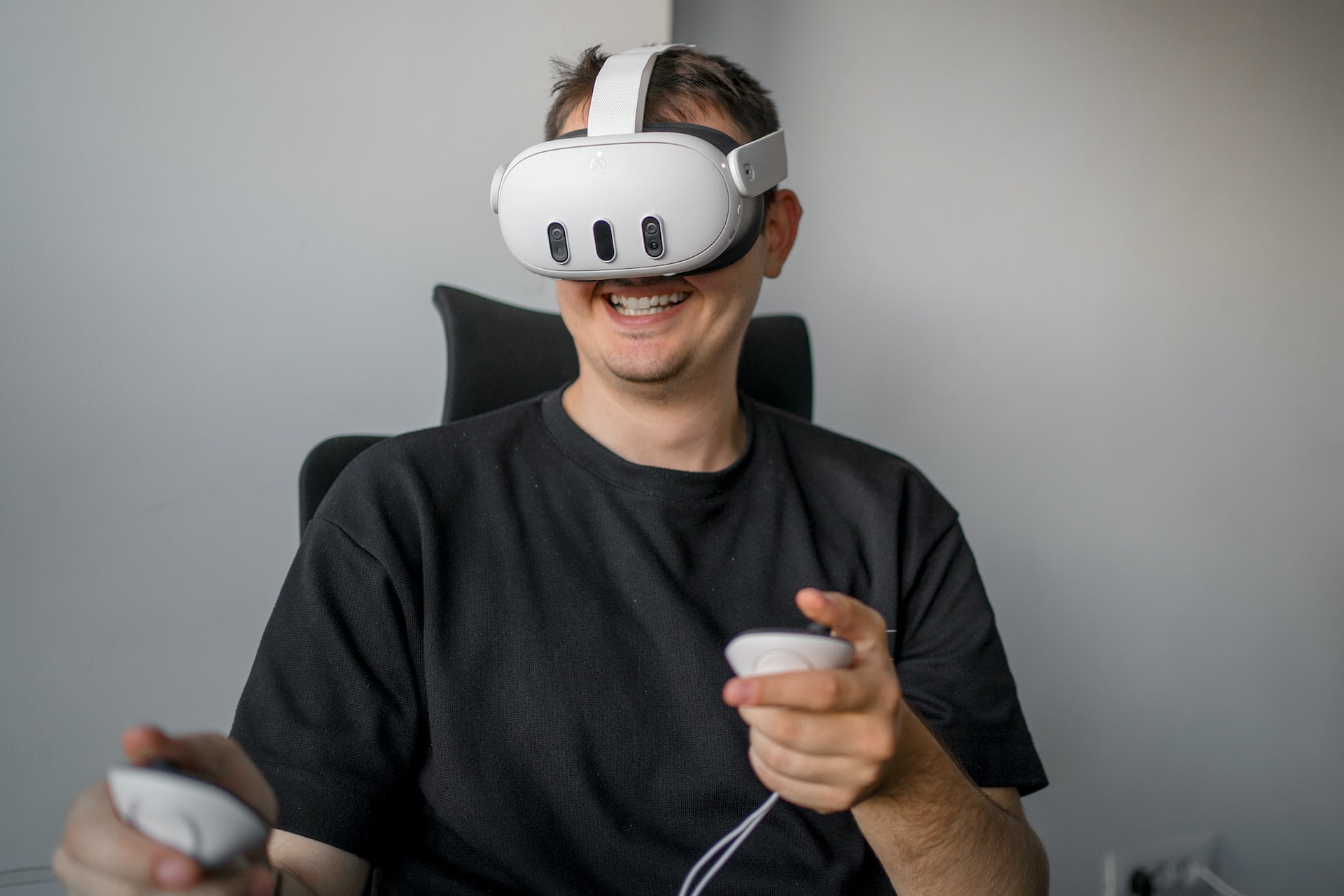
So you just got yourself a Meta Quest 3 or are thinking about buying one? Then you should take the time to read through this extensive guide that we designed to help you get the most out of your new VR headset. From saving money to improving your experience, here are 10 valuable tips and tricks we learned after dealing with Meta’s Virtual Reality headsets for years.
10 Tips for the Meta Quest 3
1. Take your time when adjusting the Quest 3 to your head
We get it – as soon as you’re holding a Quest 3 in your hand, you want to dive into VR immediately. But not so fast! Setting up the headset properly is super important to achieve a comfortable fit on your head.
It’s not super complicated, all you have to do is take your time when going through the initial tutorial upon starting the headset for the first time. Unfortunately, many people rush through this process and then get frustrated by the uncomfortable fit, pain, or even dizziness.
2. Buy (the right) accessories
The Quest 3 is an expensive piece of hardware, and as such it should have come with a very comfortable strap and face cushion. Sadly, we can’t really say that Meta did a good job here. Those who are serious about VR will quickly realize that getting a proper head strap and other accessories can greatly enhance their experience, especially when using the headset for more than 30 minutes.
With that being said, we highly suggest ditching any official Meta accessories and instead going for third-party options. These are not only much more affordable than Meta’s overpriced equipment, but they usually are of much better quality too! In fact, Meta has been repeatedly criticized for the low quality of their head straps and other accessories, and they even acknowledged major flaws in their Quest 3 head straps.
At VR World Cyprus, we expect to start offering third-party accessories around the end of December 2023. This will enable anyone in Cyprus to buy quality head straps (with and without batteries), silicon face covers, travel cases, and more at a fraction of the cost of the official accessories.
3. Never buy games & apps at full price
Games and apps on the Meta Quest store can be quite expensive sometimes. Thankfully, there’s a super simple way to get price reductions of up to 25% for any game through Meta’s referral program.
In a nutshell, owners of a certain app or game can get a referral link through the Meta Quest app, which will provide other users with a 25% discount on the same game. If the same code has been used too many times, this discount will go down to only 10%.
You can get discount codes for virtually any game or app through a website called Meta Dog, via the Subreddit r/Oculusreferral, or through a small selection of top-selling games here: 25% off of Beasaber | 25% off of Red Matter 2 | 25% off of Bonelab | 25% off of Eleven Table Tennis | 25% off of Puzzling Places
4. Try out games & refund
Of course, many exciting games are still anything but cheap, even with discounts applied. If you’re not looking to spend a crazy amount on games and experiences, or if you’re not sure yet what types of games you even like, then you will be very happy about Meta’s refund mechanism.
Here’s how it works: if you purchased a game and you’ve played it less than 2 hours (and the purchase was not more than 14 days ago), then you can simply request a return with a full refund for the game through the Quest mobile app. Before doing this, we also suggest activating the Quest Move app (already installed on your device, just requires activation), which enables you to track how much time you’ve spent in a single app.
5. Expect and manage motion sickness
If you’re new to VR in general, chances are that you may not be aware of motion sickness yet. This is a very unpleasant yet common sensation that most people will feel when entering virtual worlds for the first time.
Thankfully, the vast majority of users will not experience motion sickness during experiences where your virtual body doesn’t move unless your real body moves as well. Examples of this are games such as Beat Saber, Super Hot, Table tennis, and many more popular titles. However, things can change quickly once your brain sees movement that does not correspond with your body. This is typically the case in shooters, action games, as well as racing and flying experiences.
If you’re new to VR and start feeling any sign of motion sickness, it’s best to stop the game and instead do something else. If you don’t listen to your body, you might get extremely nauseous and even remain in that state for hours (trust us, we’ve been there).
With continuous exposure to VR, your body will likely get used to virtual movements and you won’t feel dizzy anymore. Additionally, many games have several comfort options to reduce motion sickness. These games will allow you to teleport or move with a vignette, among other features. Before buying a game, you can also check Meta’s comfort score on its store page, which shows how intense (in terms of motion) it will be.
6. Keep your headset safe from direct sunlight
This doesn’t refer to your headset in general but rather the lenses of it. Especially in a country like Cyprus, it’s absolutely critical to make sure that there’s no chance of direct sunlight reaching your lenses (not even through a window) at any point.
Even a few seconds of exposure can substantially damage your displays, so better be safe than sorry when placing your Quest somewhere.
7. Introduce your friends & family to VR
One of the best parts of virtual reality is sharing it with other people. Unfortunately, VR is still a pretty small niche, which means that it’s our responsibility to introduce more people to it and let them experience the magic for themselves.
When giving your headset to a trusted friend or family member, make sure to educate them on how to adjust the head strap properly and use the IPD scale. Also, be sure to introduce them to the right games too. A good app to start with is First Steps for Quest 2, which was used to introduce new Quest 2 owners to their device – but it’s still amazing in Quest 3.
8. Use App Sharing with close friends or family members
Those who are lucky enough to have very close friends or family members who already own a Quest 2 or 3 headset should consider its App Sharing function. This enables you to share almost every app and game you bought with the other headset for free – including multiplayer functions.
To activate App Sharing, your friend needs to log into your Meta account on their headset for a brief moment. He can then switch back to his own account and simply download any games or apps he wants. It goes without saying that you need to be absolutely sure that the other person acts responsibly with your account, as they could technically cause a lot of harm.
9. Best practices for PC VR [Advanced]
If you have a gaming PC with a decent GPU then for sure you don’t want to miss out on PC VR. Even though the Quest 3’s standalone capabilities are phenomenal, PC VR gaming still offers the most impressive graphics and experiences.
To connect your Quest 3 to a PC for VR gaming, you will need a high-speed USB-C link cable or a WiFi router with a 5Ghz connection, or even better, with WIFI6 capabilities. Surprisingly, the latter has somewhat developed into the method of choice for most PC VR users.
Wireless PC VR not only offers the most convenient experience, but it may also provide an even better image than the link cable. There are currently three ways to access PC VR wirelessly: AirLink (Meta’s official app), Steam VR (Steam’s official app), and Virtual Desktop (a paid third-party app).
It’s typically recommended to play around with the two free options first, as performance can vary significantly in either one of those depending on your setup and game. That said, Virtual Desktop offers by far the most settings and is thus seen as the holy grail of Quest PC VR at the moment.
10. Get SideQuest for improved graphics and free apps [Advanced]
If you’re looking to get the most out of your Quest 3 and don’t mind taking a few extra steps, then you should definitely look into SideQuest. This PC application provides access to countless (free & paid) apps and games by independent developers and also enables you to adjust hidden graphics settings of your VR headset, such as resolution, FPS, foveated rendering, and more.
It even enables you to purchase an app called QuestGamesOptimizer, which allows you to boost the graphics and performance of any game while in the headset.
To access SideQuest, you need to download and install the official software, and also activate developer mode on your Quest 3. It’s a bit of a hassle to get started, but once you have it you will be super happy about its benefits.
Leave a Reply